
TimeTo.Work
Manager guidesApprove a request

Manager guide

Approve or deny a staff request on your phone

Somebody has called in sick, asked for a day, or sent their availability, and you are on the floor rather than at a desk. Every request lands in the Requests tab with Approve and Deny on the card. For a swap or a time change where the exact hours matter, the desktop view shows the before and after side by side.

Your team's side of this: Ask for time off

Tap the envelope in the bottom bar. Inbox is everything sent to you, with the count on the tab, and each request is one card.
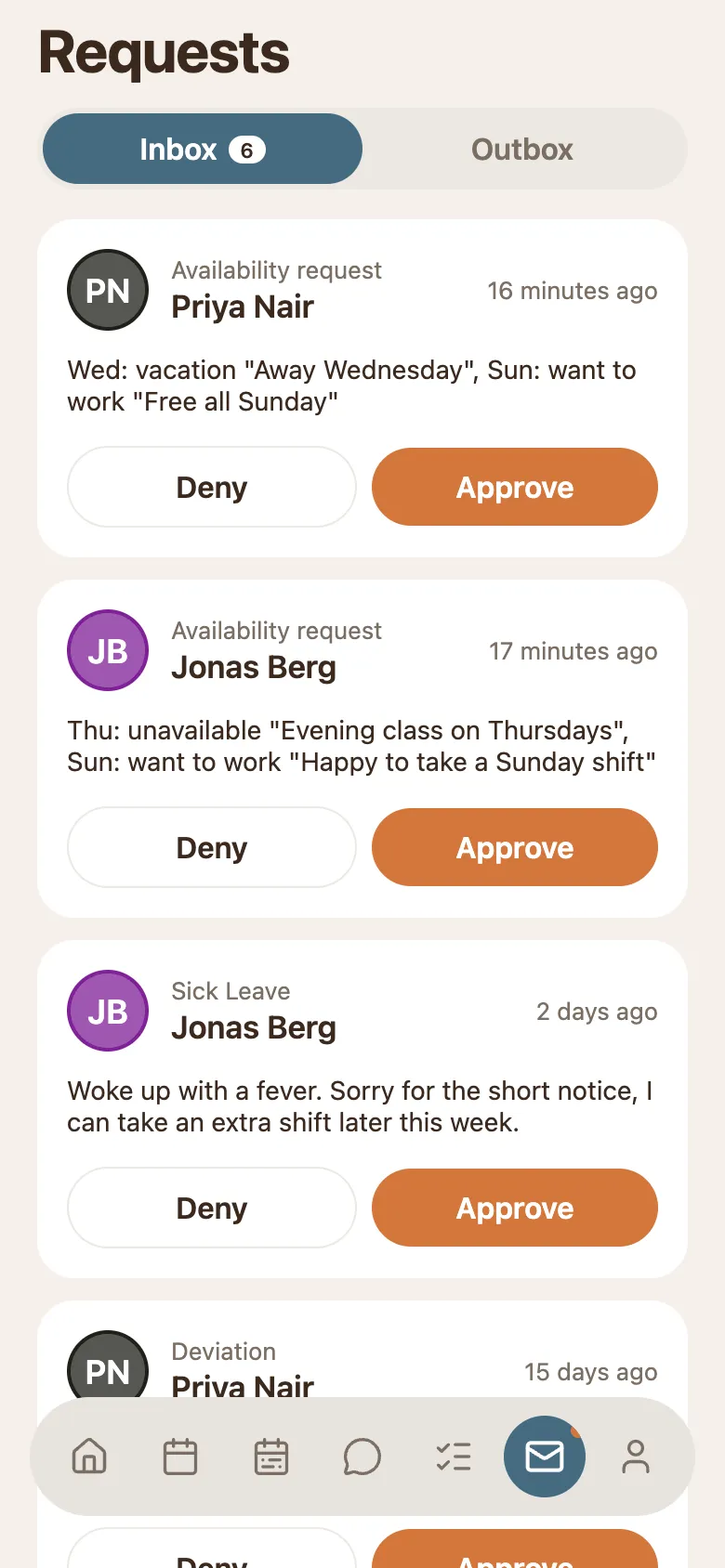
The phone Requests screen on the Inbox tab: cards for an availability request and a sick leave, each with the sender, the message and Deny and Approve buttons.
  • The card shows the kind of request, who sent it, when, and the message they wrote.
  • Approve writes the change onto the shift. Deny leaves the shift alone.
  • Answered cards slide away, so what is left on screen is what still needs you.

Turn on notifications and a sick report reaches you the minute it is sent, which is usually the one you want to know about first.
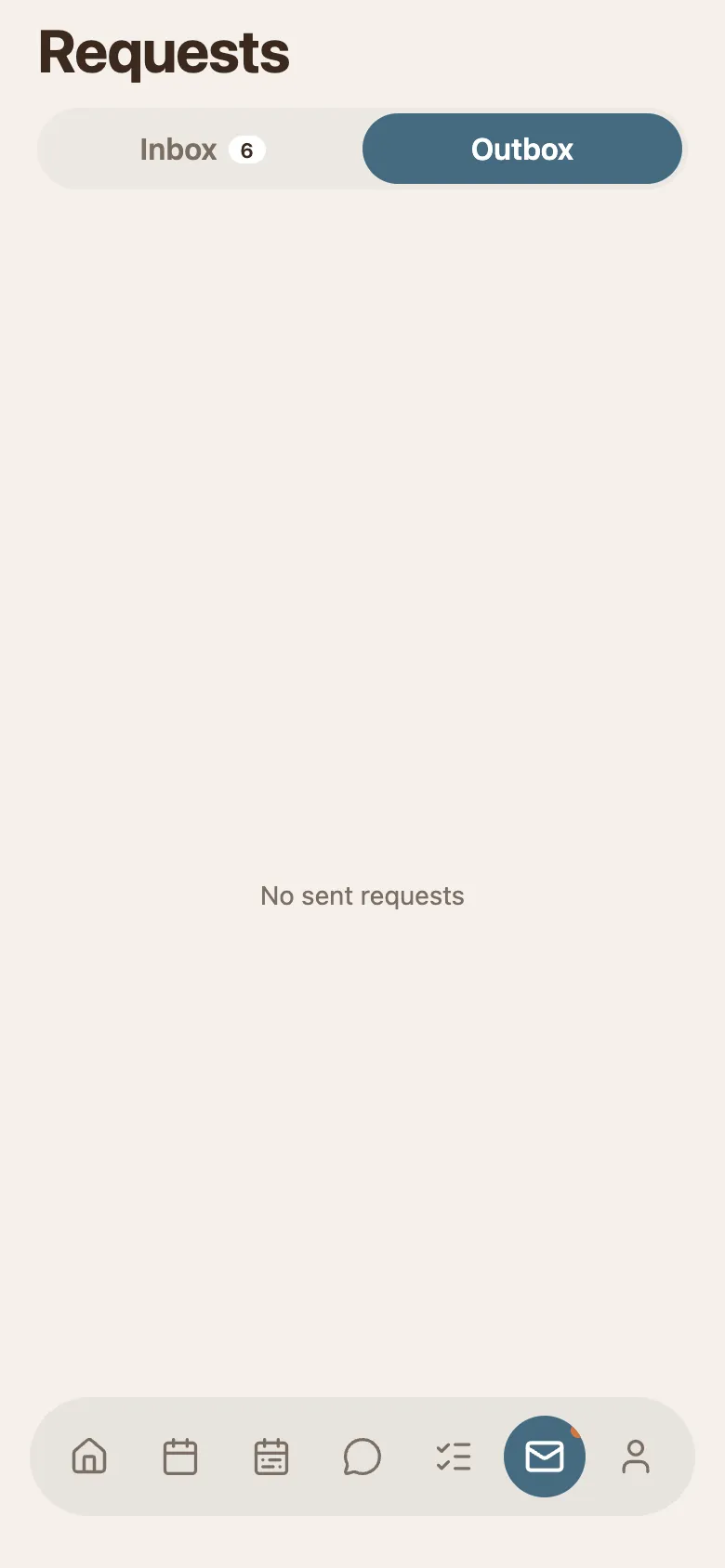
Switch to Outbox for the other direction: requests you sent, and offers waiting on somebody else to accept. With nothing outstanding it simply reads No sent requests.

The phone Requests screen with the Outbox tab selected and nothing in it, reading No sent requests.
  • Cancel pulls back a request that has not been answered yet.
  • A shift you offered to somebody sits here until they accept it, and only then comes to you for approval.
  • A swap needs the other person before it needs you, so a swap sitting in the Outbox is waiting on them, not on you.

Approve is not one action. It writes whatever the request asked for onto the shift, and what that means depends on the kind of request you are answering.

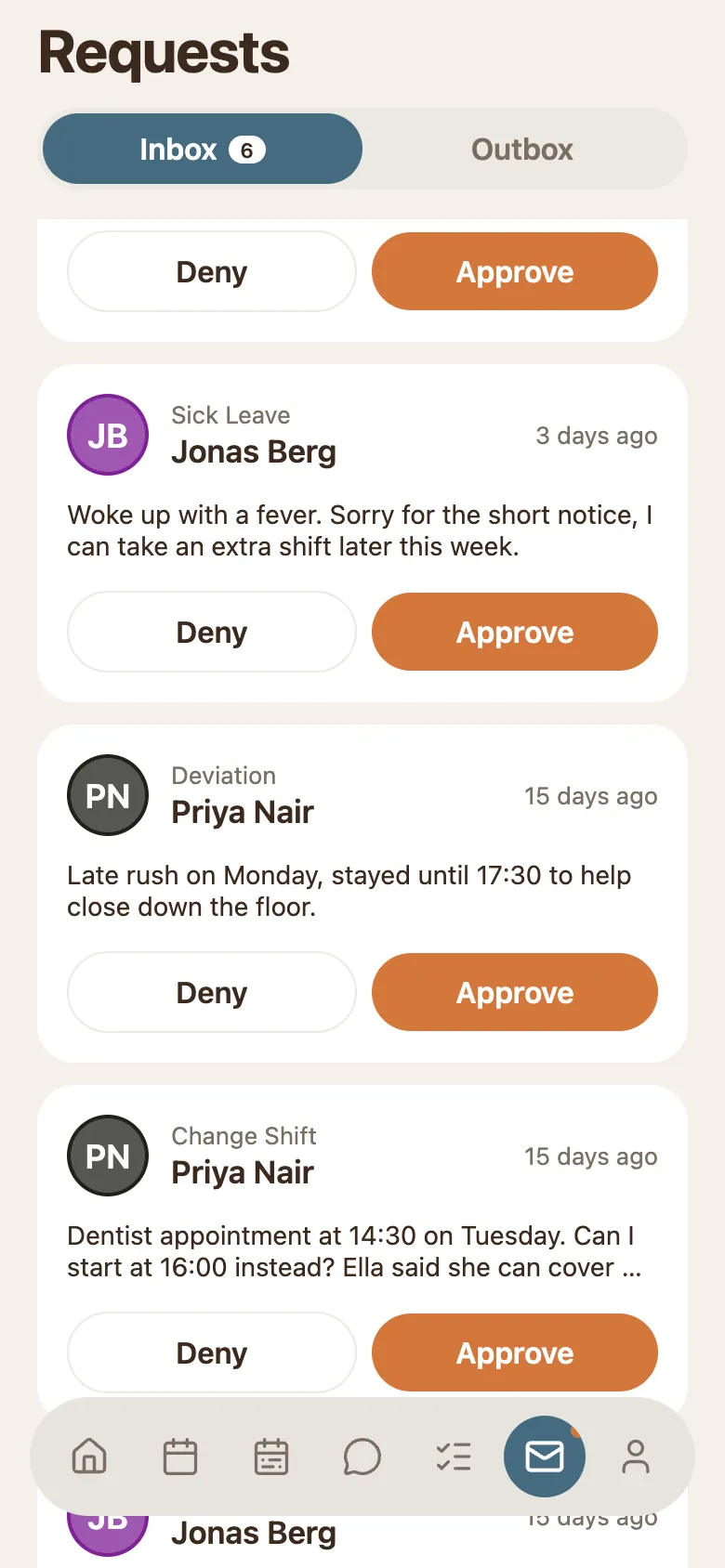
The phone inbox scrolled down, showing a Sick Leave, a Deviation and a Change Shift request one under the other, each with the same Deny and Approve buttons.
  • Sick leave marks the shift as an absence. The hours come off the worked total and show as sick in the payroll export.
  • Time deviation replaces the planned hours with the hours the person says they actually worked, which is what the report then counts.
  • Cancel shift takes the shift off that person. On a computer you can send it to open shifts instead, so somebody else can pick it up.
  • Change shift moves the start, the end or the break to the requested times.
  • Availability copies the requested days into the approved availability you plan against.

A week that is already published updates the moment you approve. Your team sees the new version without you republishing anything, so approve a change you have not agreed to yet at your peril.

Common questions

Still stuck? We're here.

Tell us what you're trying to do and we'll point you straight to it. A screenshot helps a lot.

Email support