
TimeTo.Work
Manager guidesMessage your team

Manager guide

Message your team on your computer

Shift talk in a personal messaging app is a mess: the people change, the history is on somebody's phone, and the shift being discussed is in another app. Chat here is attached to the schedule instead. Everyone in the project is already in it, and leavers drop out on their own.

Press Chat in the left menu. The first channel is All, and everyone in the project is in it without being added. Type at the bottom and press the arrow.
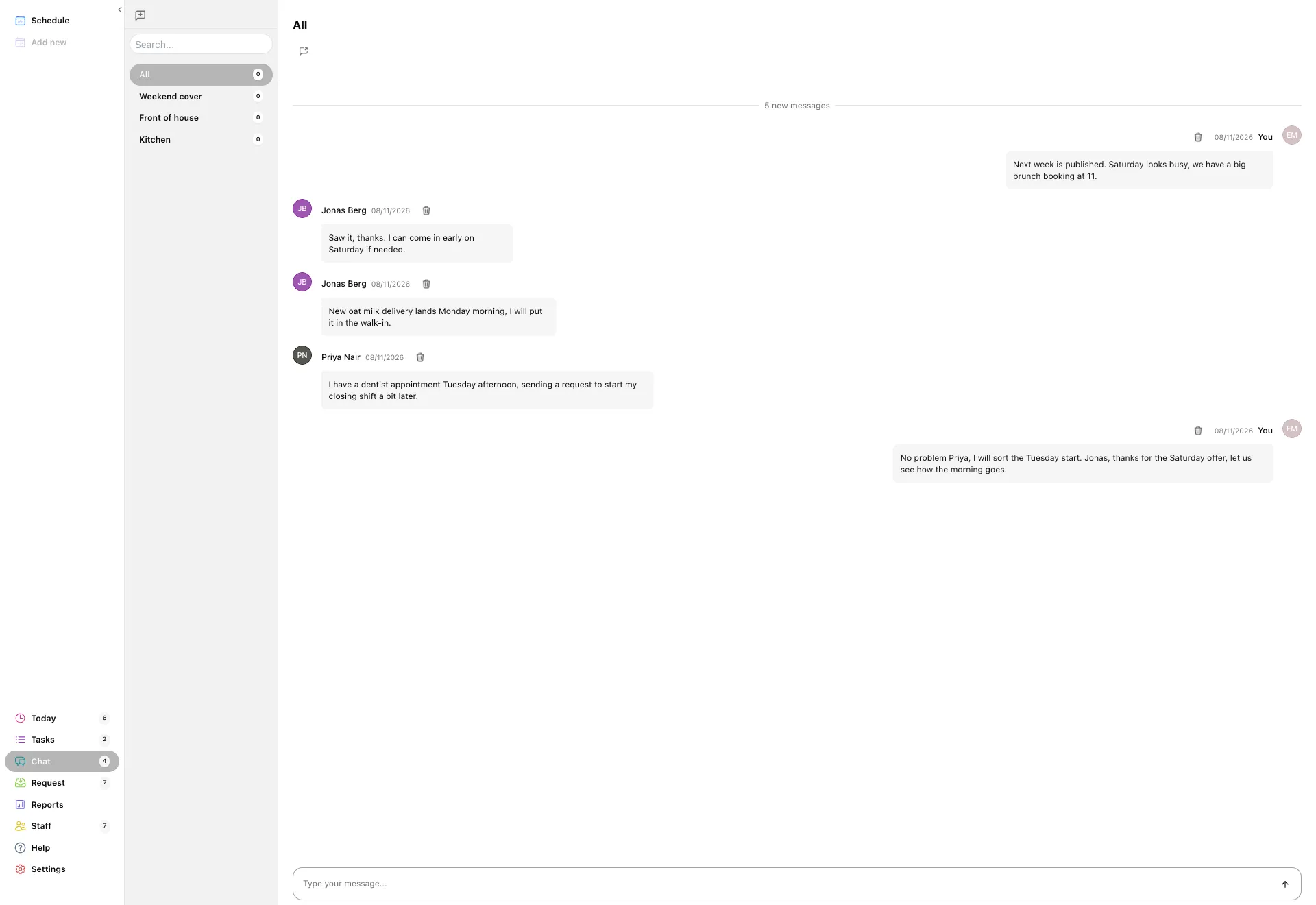
The Chat page with the All channel open: the channel list on the left, messages from several staff in the middle, and a message box along the bottom.
  • Your own messages sit on the right, everyone else on the left with their name and the date.
  • New starters join All automatically and people who leave drop out of it, so it never needs maintaining.
  • The number next to a channel is how many messages you have not read.

All is the right channel for anything the whole team should know: a delivery, a change of opening hours, next week being published.
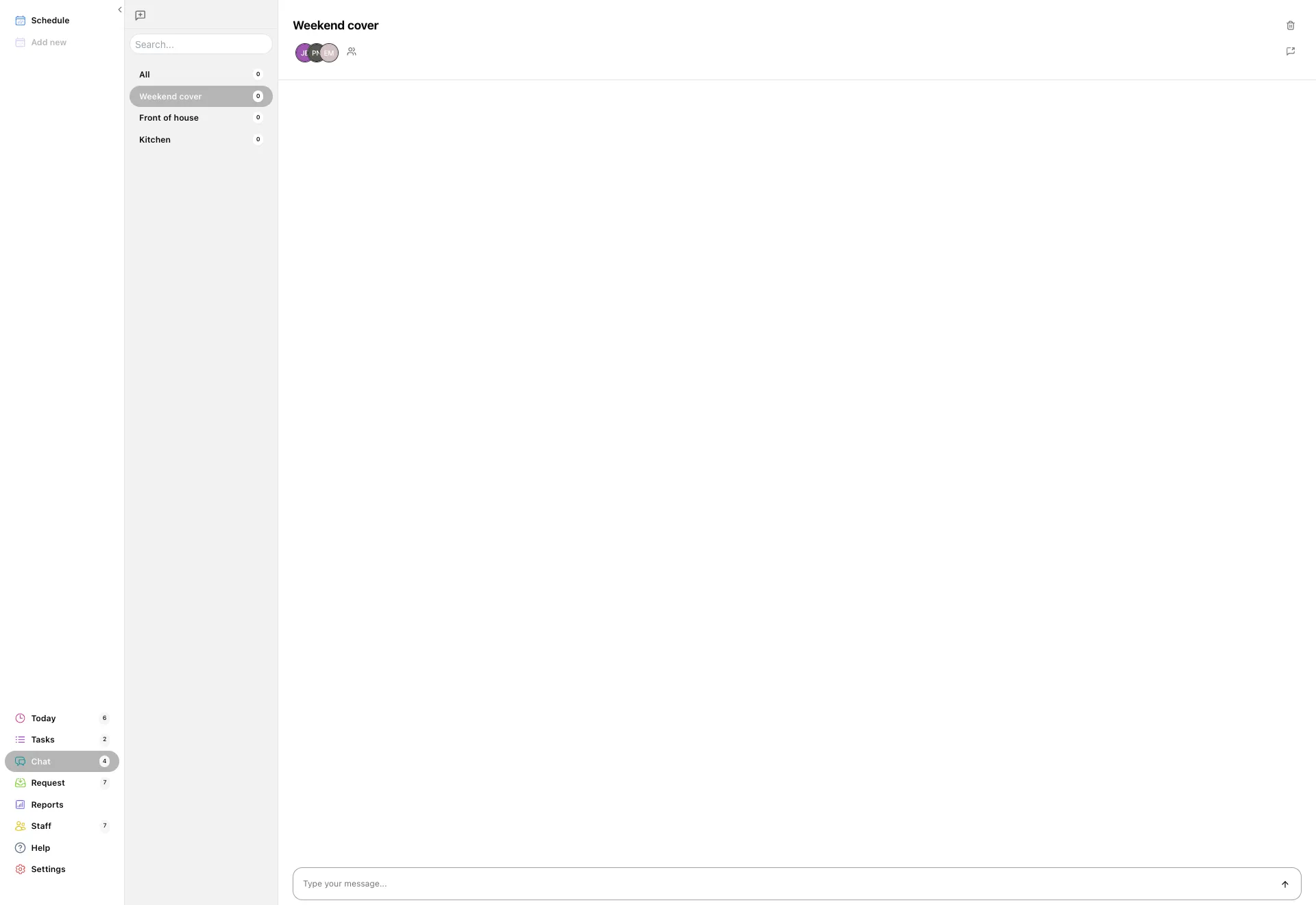
For a conversation that does not belong to everybody, press the new chat button above the channel list, type a name over the heading, and pick who is in it.

A named group chat called Weekend cover, with three participant avatars under the heading and one message in the thread.
  • Give it a name people will recognise later: Kitchen, Weekend cover, Front of house.
  • The heading is editable, so a group that changes purpose can be renamed rather than replaced.
  • A chat with exactly two people is a direct message and shows the other person's name instead of a title.

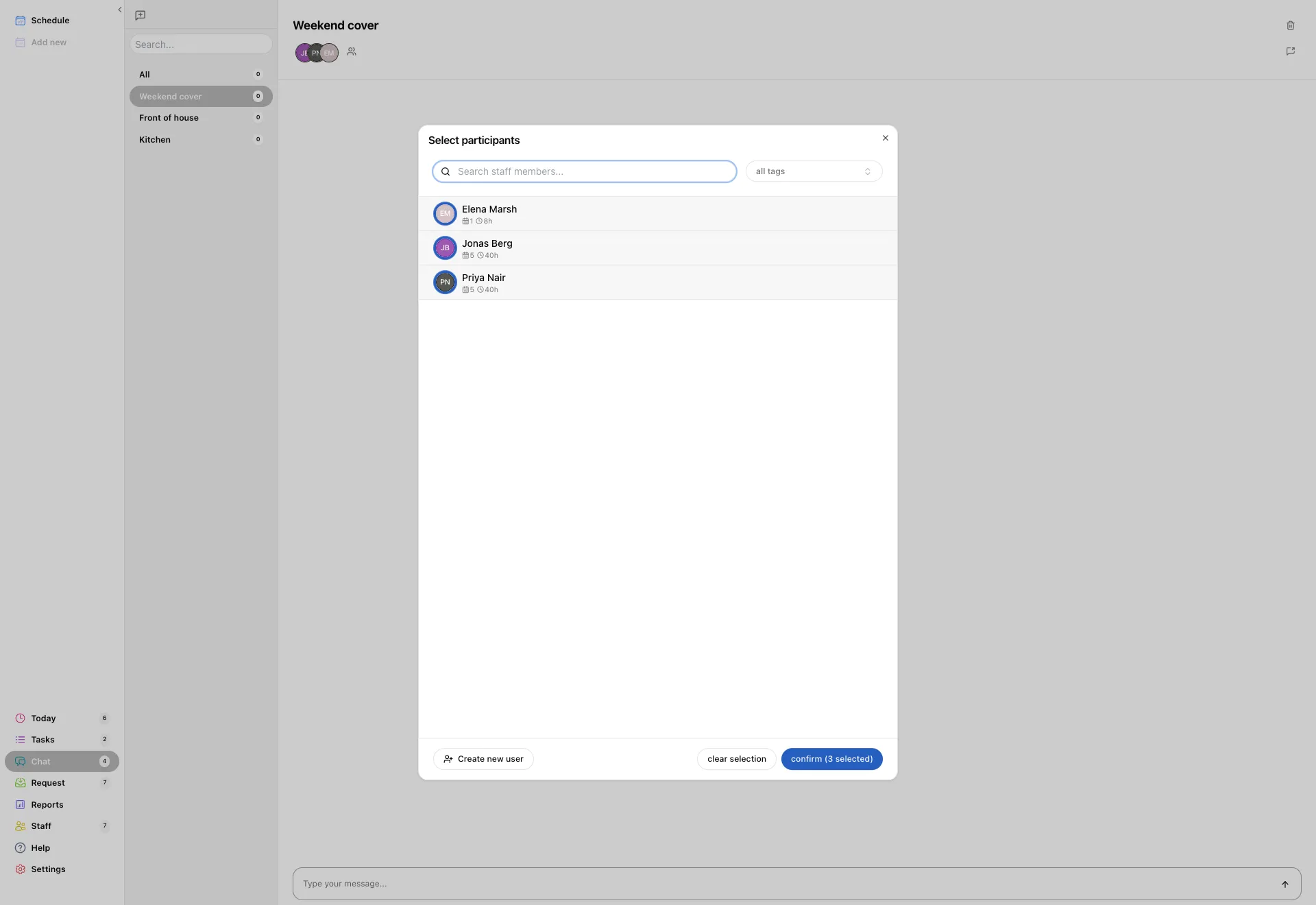
The avatars under the heading are the people in the chat. Click the people icon next to them to open Select participants and change the list.

The Select participants window over a chat: a search box, a tag filter, the staff list with shift counts and hours, and a confirm button.
  • Search by name, or filter by tag when you want a whole role rather than named people.
  • Each row shows how many shifts that person has and how many hours, which is useful when you are picking who to ask.
  • Tick and untick, then confirm. People added see the whole thread from the start.

Anyone you add can read what was said before they joined. Keep anything about one person's pay or performance out of a group thread.

Common questions

Still stuck? We're here.

Tell us what you're trying to do and we'll point you straight to it. A screenshot helps a lot.

Email support