TimeTo.Work
Manager guidesExport hours

Manager guide

Export hours for payroll on your computer

Payroll day should be a date range and a download, not an evening with a calculator. Reports adds up what everyone actually worked over any period you choose, shows it per person and per day, and hands it over as a spreadsheet, a printable page, or a CSV your payroll provider can read. This one is on the computer: the phone app does not do payroll export.

Press Reports in the left menu. Your staff are listed down the left with the number of shifts each has in the period, and clicking one shows their days.
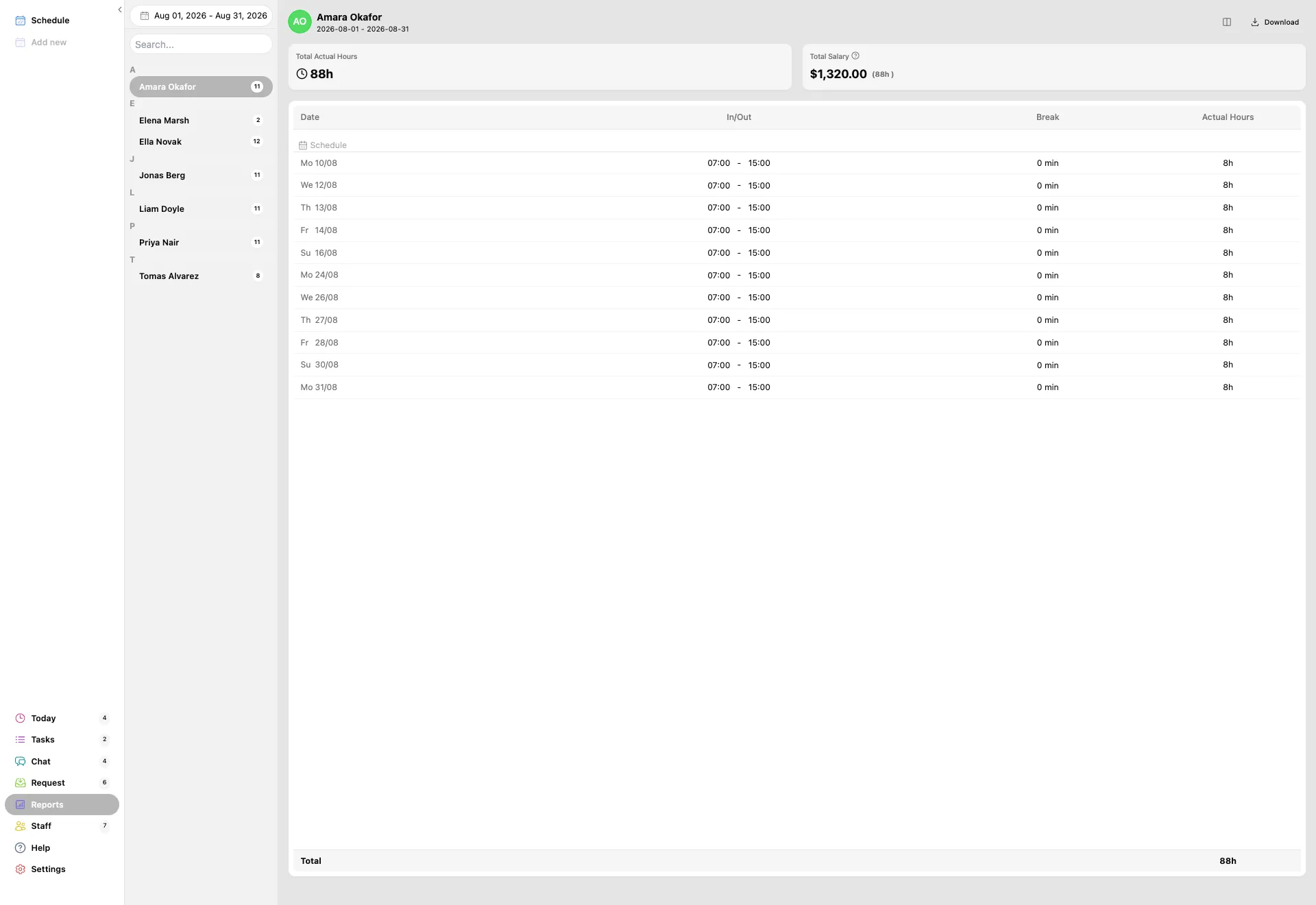
The Reports page: staff down the left with shift counts, Total Actual Hours of 88h and Total Salary of 1,320 dollars at the top, and a table of dates with in and out times, break and actual hours.
  • Total Actual Hours is what that person worked over the range, after breaks.
  • Total Salary is those hours costed at the wage set on the person, which is why the two cards sit side by side.
  • The table underneath is one row per day: the date, the in and out times, the break, and the hours that day.
  • The Total row at the foot is the same number as the card, so a printed page proves its own arithmetic.

Reports counts published shifts. A week still sitting in draft is not in the numbers, which is usually what a missing day turns out to be.
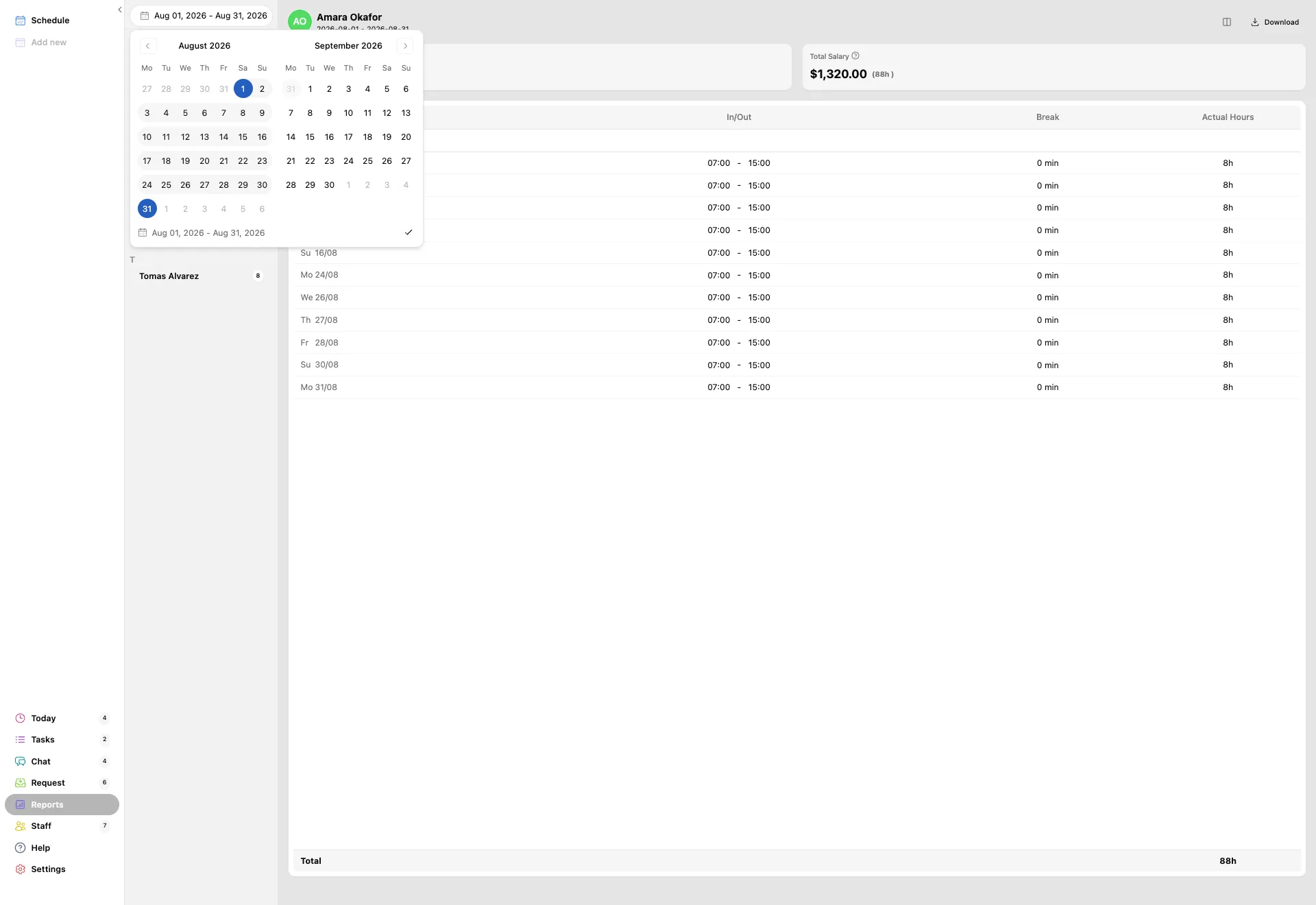
The date range button at the top left is what everything on the page is measured over. Click it and a two-month calendar opens.

The date range picker open over the reports page, showing two months side by side with the first and last of the month selected and the range printed underneath.
  • Click the first day, then the last day. The range is printed at the foot of the picker so you can check it before you commit.
  • Two months are shown at once, so a period that crosses a month boundary is still two clicks.
  • The arrows at the top move the calendar back and forward a month at a time.
  • Confirm with the tick, and the totals and the table redraw against the new range.

Set the range before you export. Every download takes the range that is on screen, so an export that looks wrong is nearly always the wrong dates.

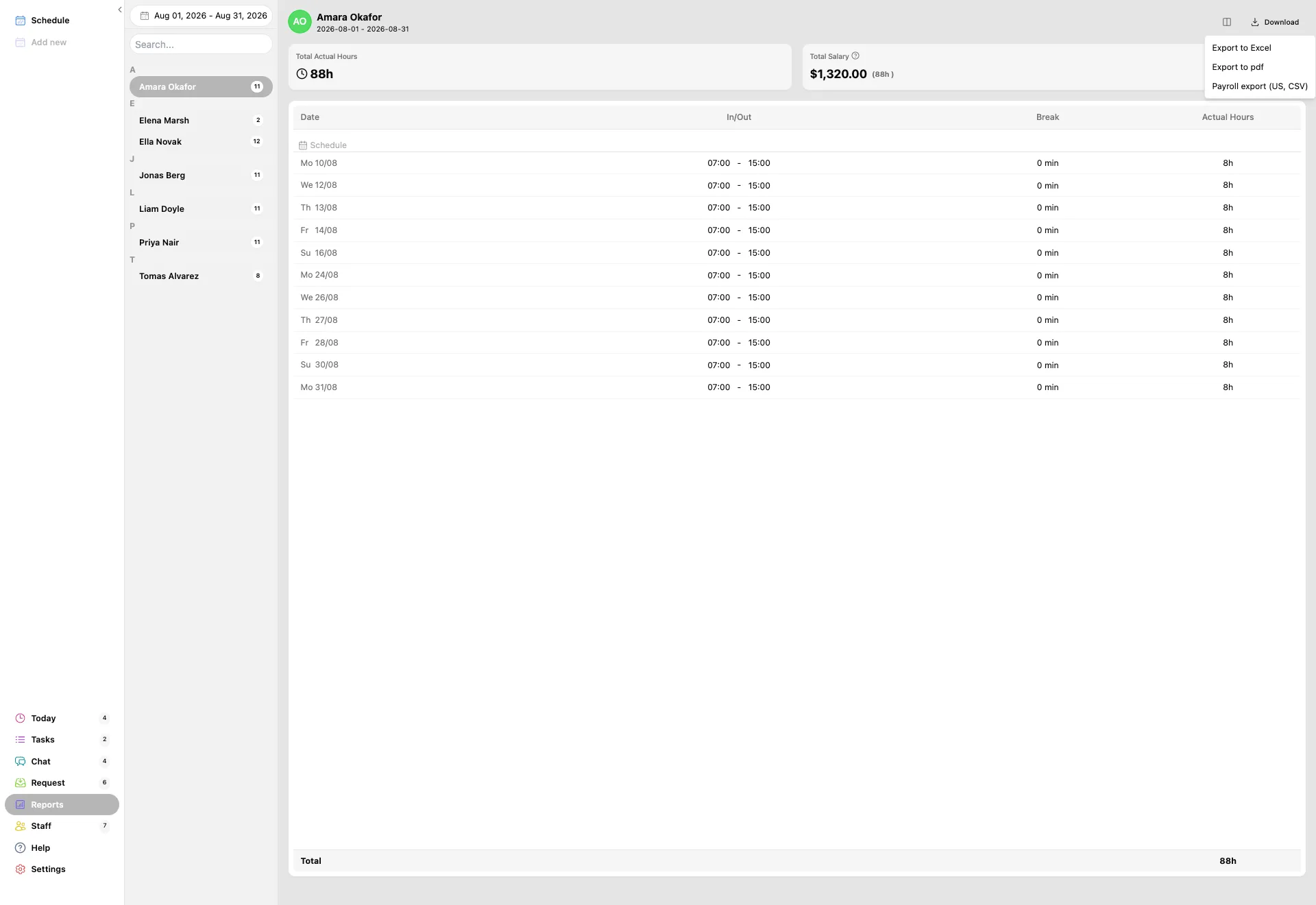
Download in the top right holds the three ways out of this page.

The Download menu open on the reports page with three entries: Export to Excel, Export to pdf, and Payroll export in US CSV.
  • Export to Excel gives you the table on screen as a spreadsheet, named after the person and the dates.
  • Export to pdf opens the print dialog on the same layout, for a copy that goes in a folder or gets signed.
  • Payroll export (US, CSV) is the one your payroll provider wants, and it is the next step.

The payroll export is not just the same table in another file. It splits every person's hours into the columns a payroll run needs, using the overtime rule you choose.

The Payroll export CSV dialog: an overtime rules dropdown, notes about hour limits and verifying local regulations, a choice between selected staff only and all staff, and an Export CSV button.
  • Pick the overtime rule for where you are. The built-in ones cover the common cases; No automatic overtime uses only the multipliers on the shifts.
  • Which columns you get follows the overtime rule you picked, so nothing has to be picked apart afterwards. The US rule gives Regular, Overtime, Double Time, PTO, Sick, Other and Total, while No automatic overtime gives Vacation in place of PTO and, unless you have set your own double-time thresholds, no Double Time column. Every export also carries a Multiplier column.
  • Choose Selected staff only for one person, or All staff for the whole team in one file.
  • Hour limits themselves live in Settings, under System, Payroll.
  • Press Export CSV and the file downloads.

The built-in country rules are a starting point, not legal advice. Check the hour limits and the exported totals against your own local rules before you run payroll on them.

Common questions

Still stuck? We're here.

Tell us what you're trying to do and we'll point you straight to it. A screenshot helps a lot.

Email support