TimeTo.Work
Manager guidesCreate a task list

Manager guide

Create a task list on your phone

A checklist is the routine written down once, so the jobs that live in somebody's head stop getting forgotten. The phone does the whole thing: the list, its steps, who it belongs to, and the ticking. It is also the screen the people doing the work will actually be looking at. Making and editing lists is for managers and admins: staff see the lists they are on and tick them off.

Tap the checklist icon in the bottom bar. Your lists are cards, each with its name and how many of its steps are done.
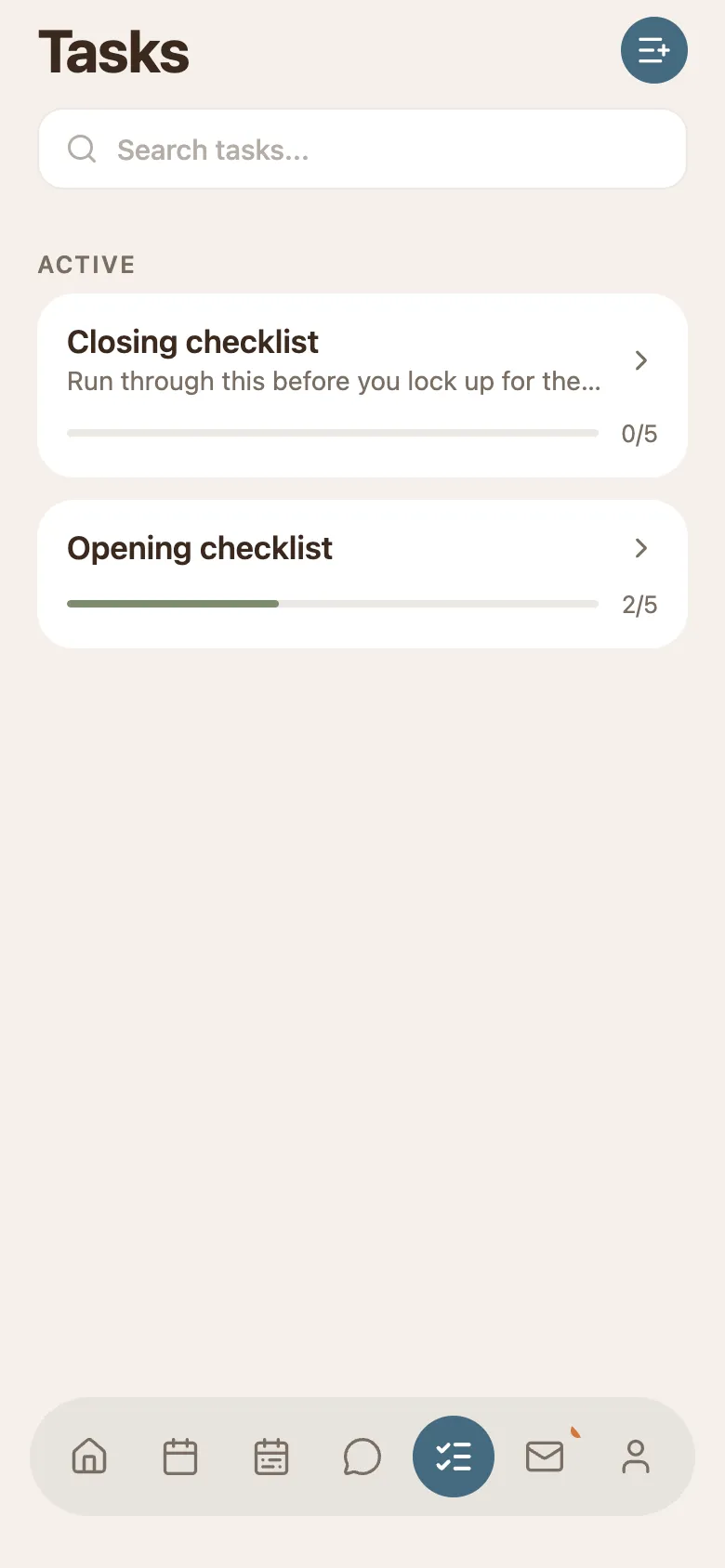
The phone Tasks screen: a search box and cards for each checklist showing the name and a done-out-of-total count, with an add button in the top corner.
  • The search box filters the cards as you type.
  • The count on a card is how many steps are ticked out of the total.
  • Staff see only the lists they are assigned to, so their screen stays short.
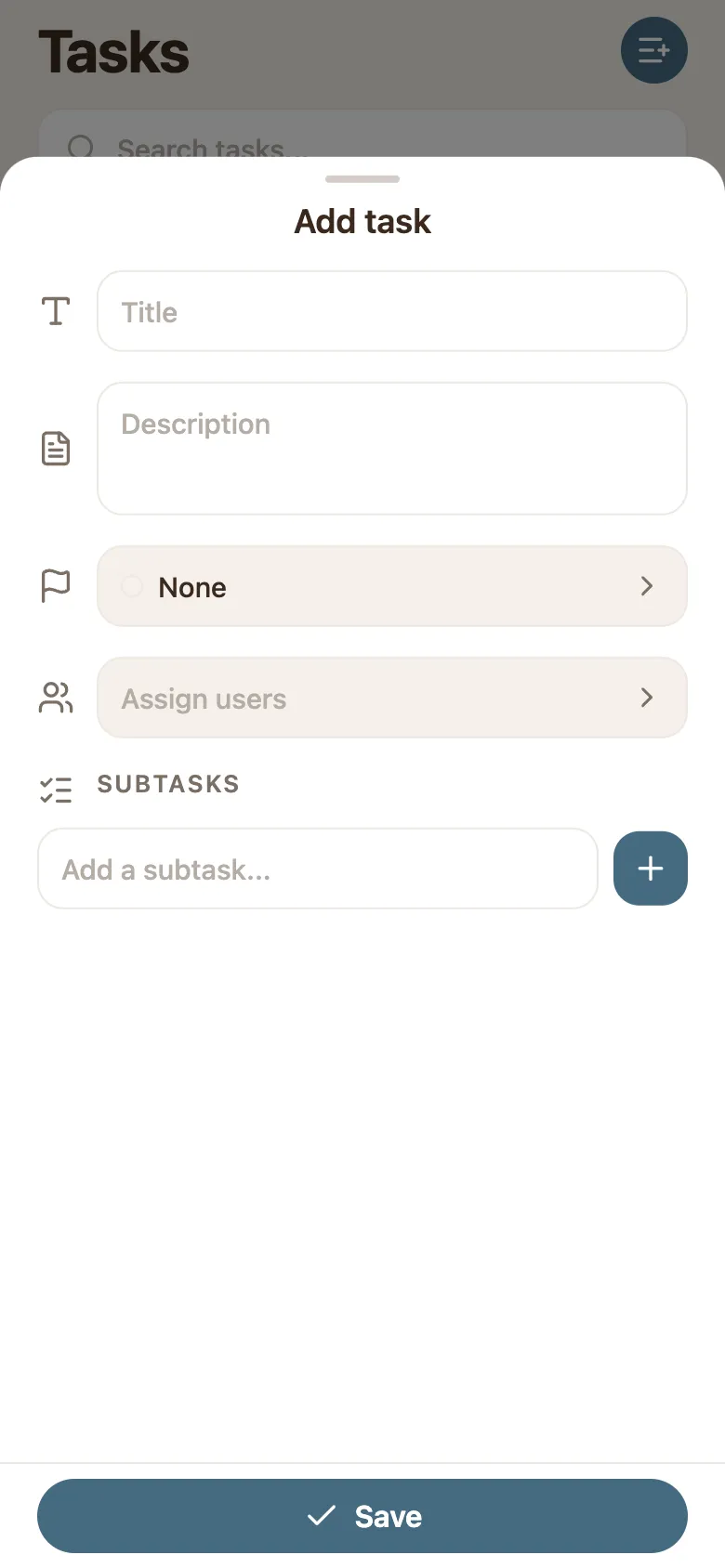
Tap the add button in the top right. It shows for managers and admins only. Add task slides up as one form: the name, a description, a priority, who it is for, and the steps.

The Add task sheet on the phone with fields for Title, Description, priority, Assign users, a subtasks section with an add box, and a Save button.
  • Title is the routine, Description is when it should be run.
  • Assign users is who sees it. Leave it empty and it is yours alone.
  • Type each job into Add a subtask and press the plus. They stack up under the field.
  • Nothing is created until you press Save, so you can back out of a half-finished list.

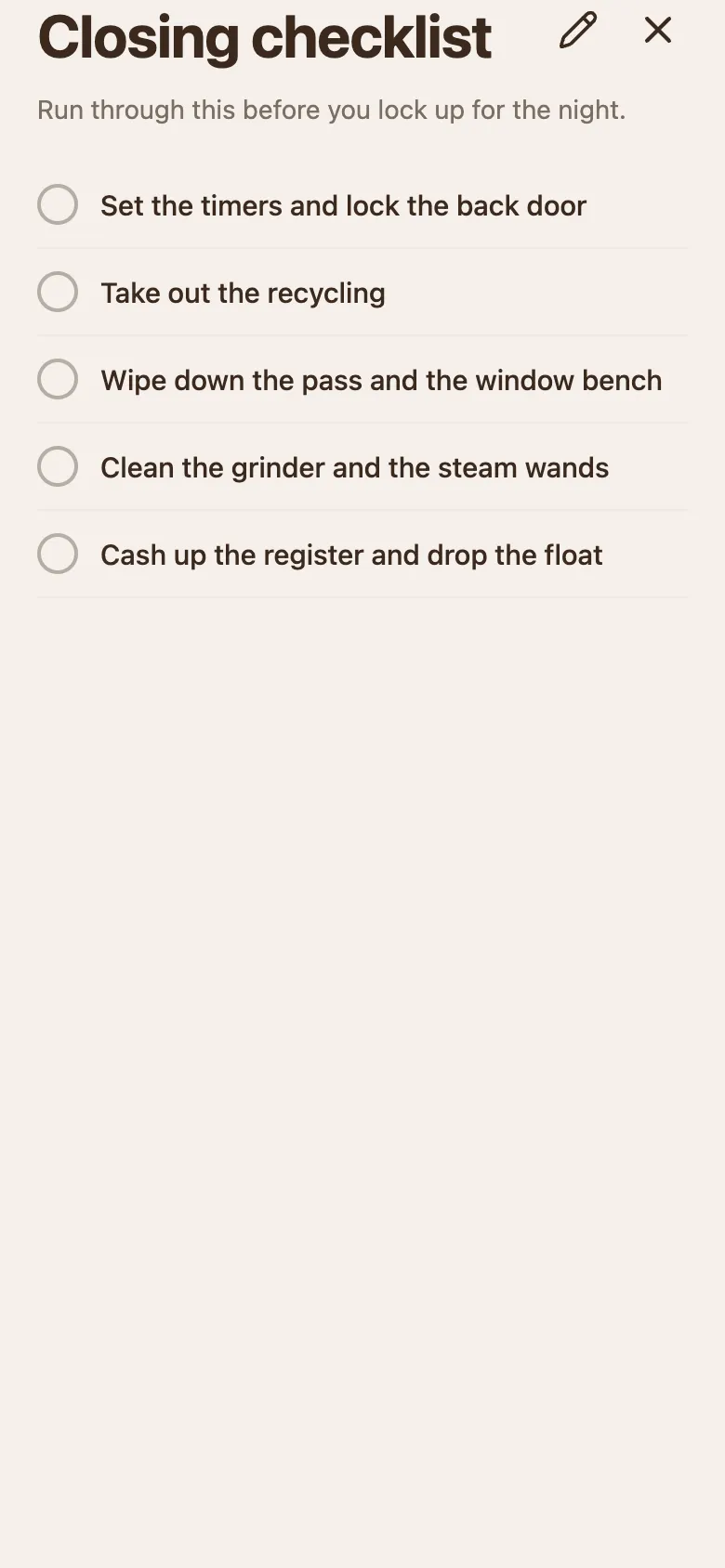
Tap a list to open it. The description is at the top and the steps under it, each with a circle. Tap the circle as you finish a job and it fills in.

An open checklist on the phone: the title, the description, and five jobs each with an empty circle, with an edit pencil and a close button in the corner.
  • A tick is instant for everyone: your manager sees the progress move without asking.
  • The pencil in the corner opens the same form again, for adding a step or changing who the list is for. It shows for managers and admins only.
  • Ticked steps count towards the number on the card, which is what the list looks like from the outside.

Tick as you go rather than all at the end. The times are recorded, and a list ticked in one burst tells nobody anything.

A checklist earns its place by being short, current and clearly owned. A few habits keep it that way.

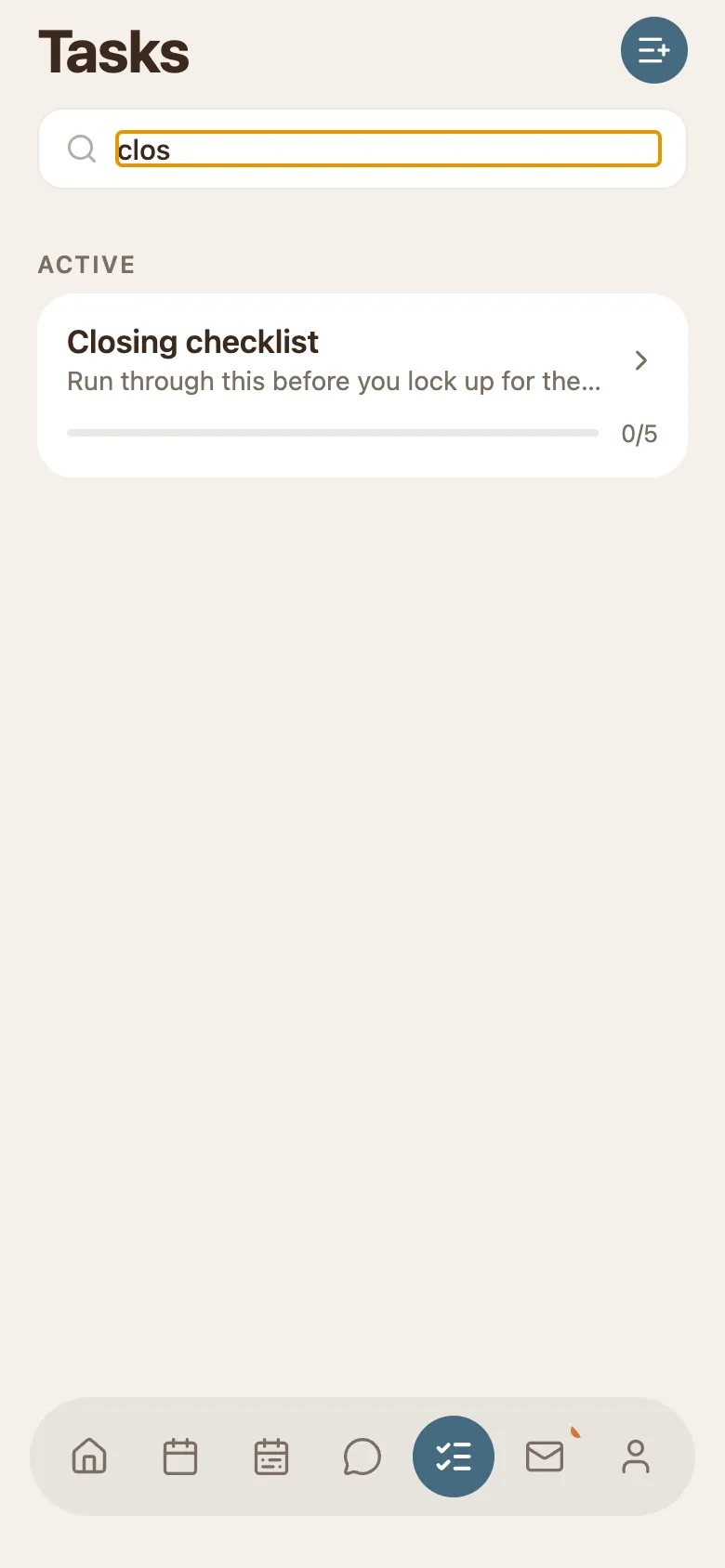
The phone Tasks screen with the word clos typed into the search box, narrowing the list to the single Closing checklist card.
  • One list per routine, reused, rather than a new list every day. The counts stay meaningful and nothing piles up.
  • Give every list a real owner with Assign users. A list assigned to everybody is a list nobody checks.
  • Delete a step that has stopped mattering instead of letting people learn to skip it.
  • The search box at the top is the quickest way in once you have more than a handful of lists.

Resetting a list for the next run is done on a computer. It unticks the list for everyone, so it belongs at the start of a shift, never in the middle of one.

Common questions

Still stuck? We're here.

Tell us what you're trying to do and we'll point you straight to it. A screenshot helps a lot.

Email support