
TimeTo.Work
Manager guidesMessage your team

Manager guide

Message your team on your phone

Chat lives in the same app as the schedule, so a message about a shift sits next to the shift. On the phone you read the channels you are in and reply, which is most of what a manager does with chat during a working day. Starting a new chat and changing who is in one are still on the computer.

Tap the speech bubble in the bottom bar. Every conversation you are in is one row, newest first, with a dot on the tab when something is unread.
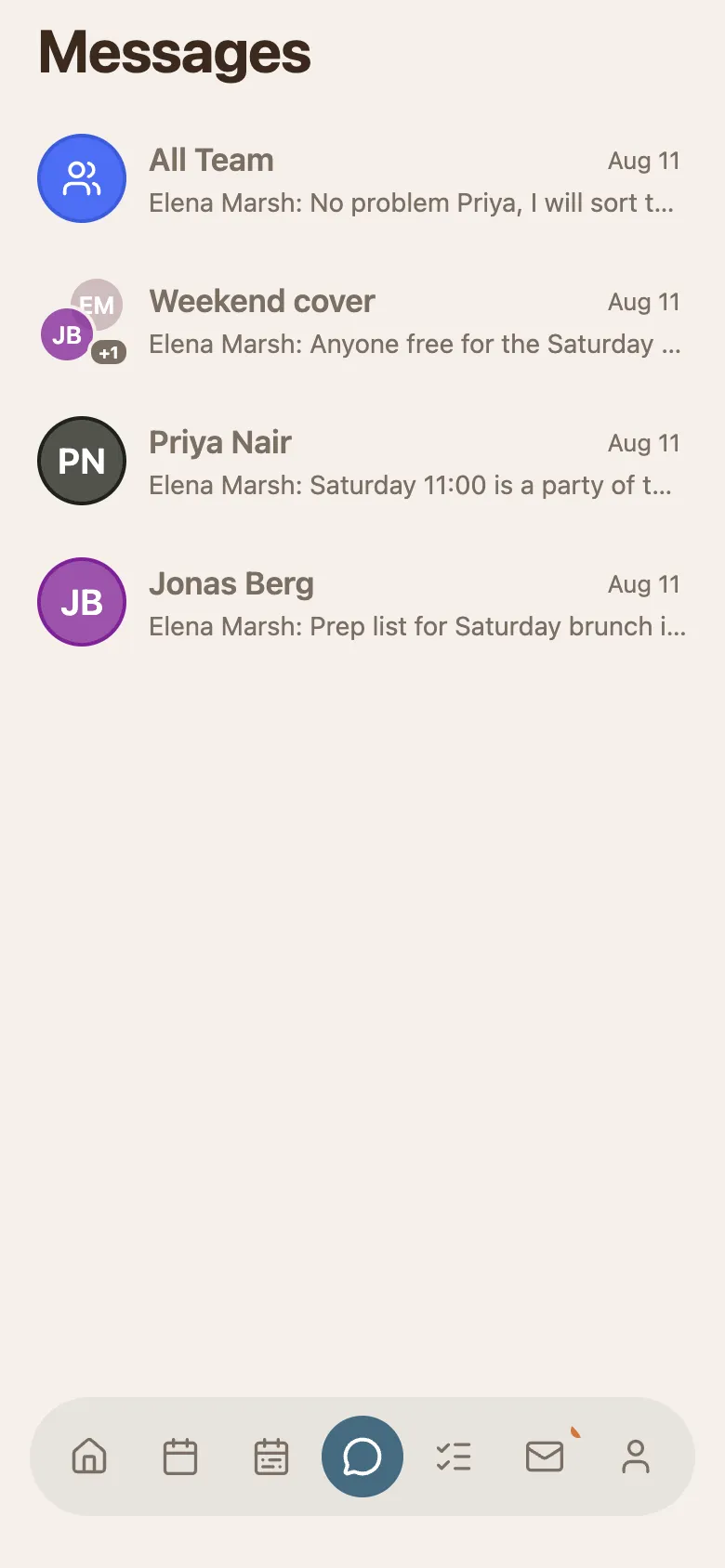
The phone Messages screen listing the All Team channel and the named group chats, each with its last message.
  • All Team is the channel everybody in the project is in.
  • Named rows are groups. A row with a person's name is a direct message.
  • The row shows the last message, so you can usually tell whether it needs you without opening it.
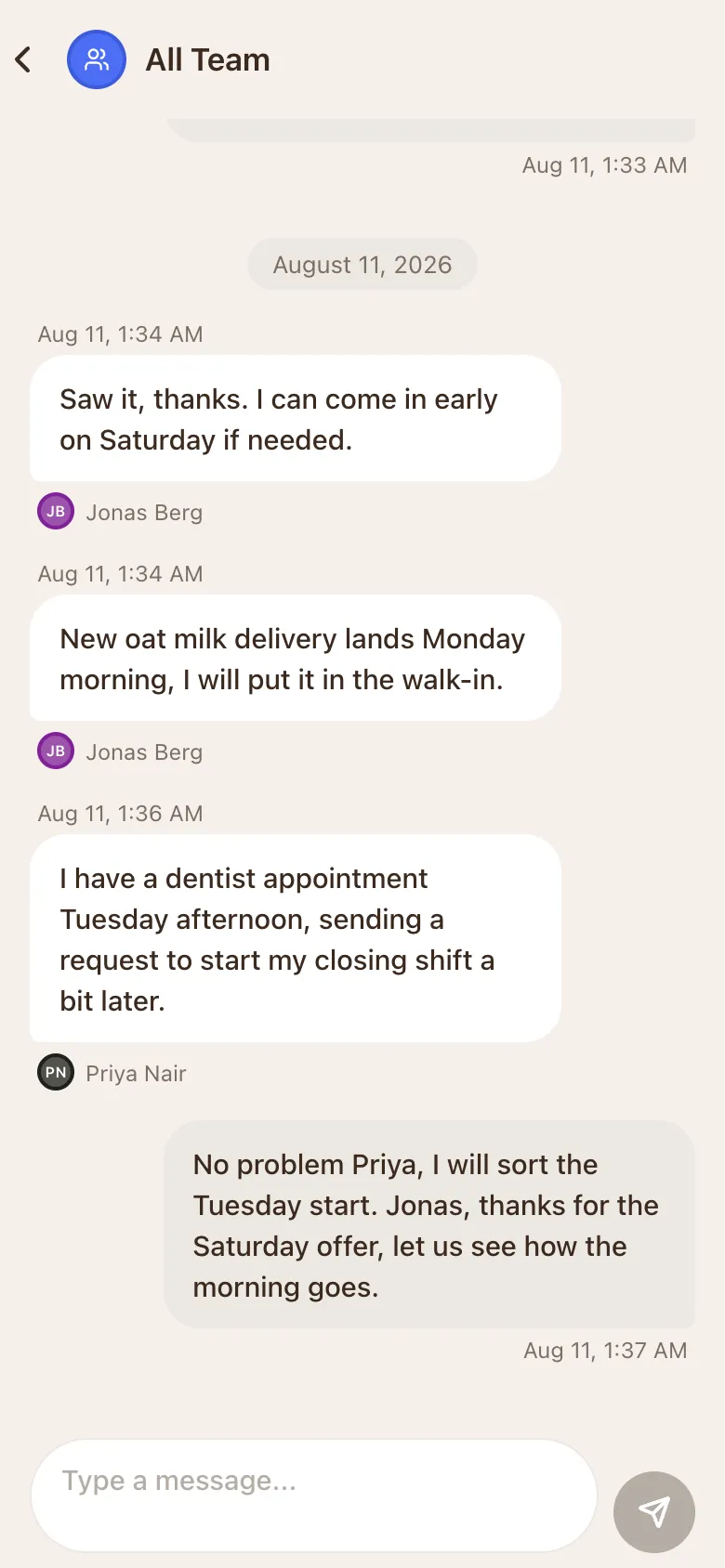
Tap a row to open the thread. Messages from other people sit on the left with their name, yours on the right. Type at the bottom and press send.

An open conversation on the phone: messages from two staff members with names and times, one reply on the right, and a message box with a send button.
  • Dates break the thread into days, so a long conversation stays readable.
  • The back arrow in the top left returns you to the list.
  • Turn on notifications and a message reaches you without opening the app.

Starting a new chat and changing who is in one are on the computer. Everything else about a thread works here.

Still stuck? We're here.

Tell us what you're trying to do and we'll point you straight to it. A screenshot helps a lot.

Email support