TimeTo.Work
Team guidesSet your availability

Team guide

Set your availability on your phone

The best time to say you cannot work Thursdays is before the week is written. On the phone that is two taps per day: open your week, tap the date, pick an answer. Your manager sees it while they plan, so the shift you would have had to swap never gets written.

Your manager's side of this: Approve or deny a staff request

Tap the calendar icon in the bottom bar. Every day is a row with a date badge on the left, and that badge is the button.
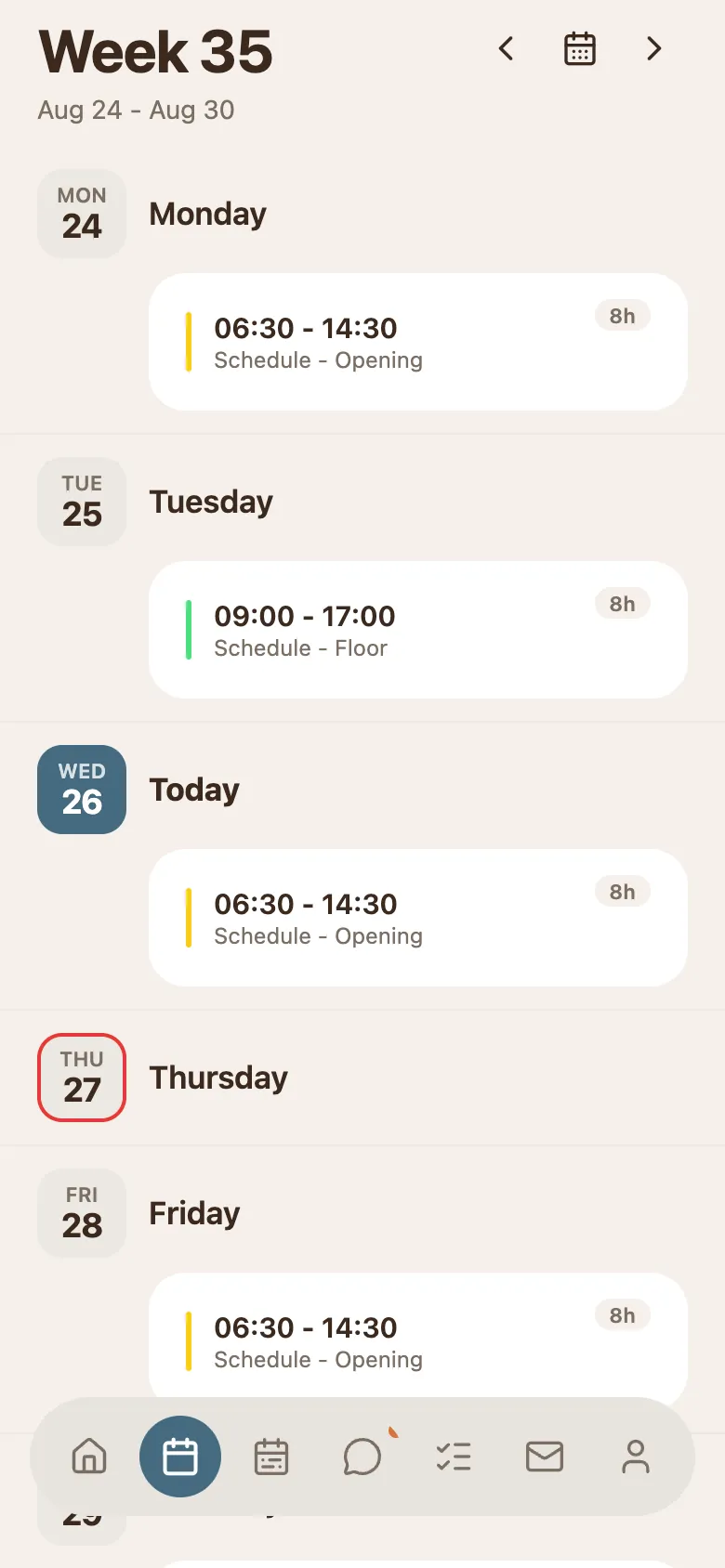
The phone schedule for one person, with one date badge outlined in colour where availability has been set and the rest plain.
  • A date badge outlined in colour already has availability on it: red for unavailable, green for want to work, yellow for vacation.
  • Today is the badge filled in solid, so it stands out from the rest.
  • Swipe sideways to reach the weeks that have not been planned yet.
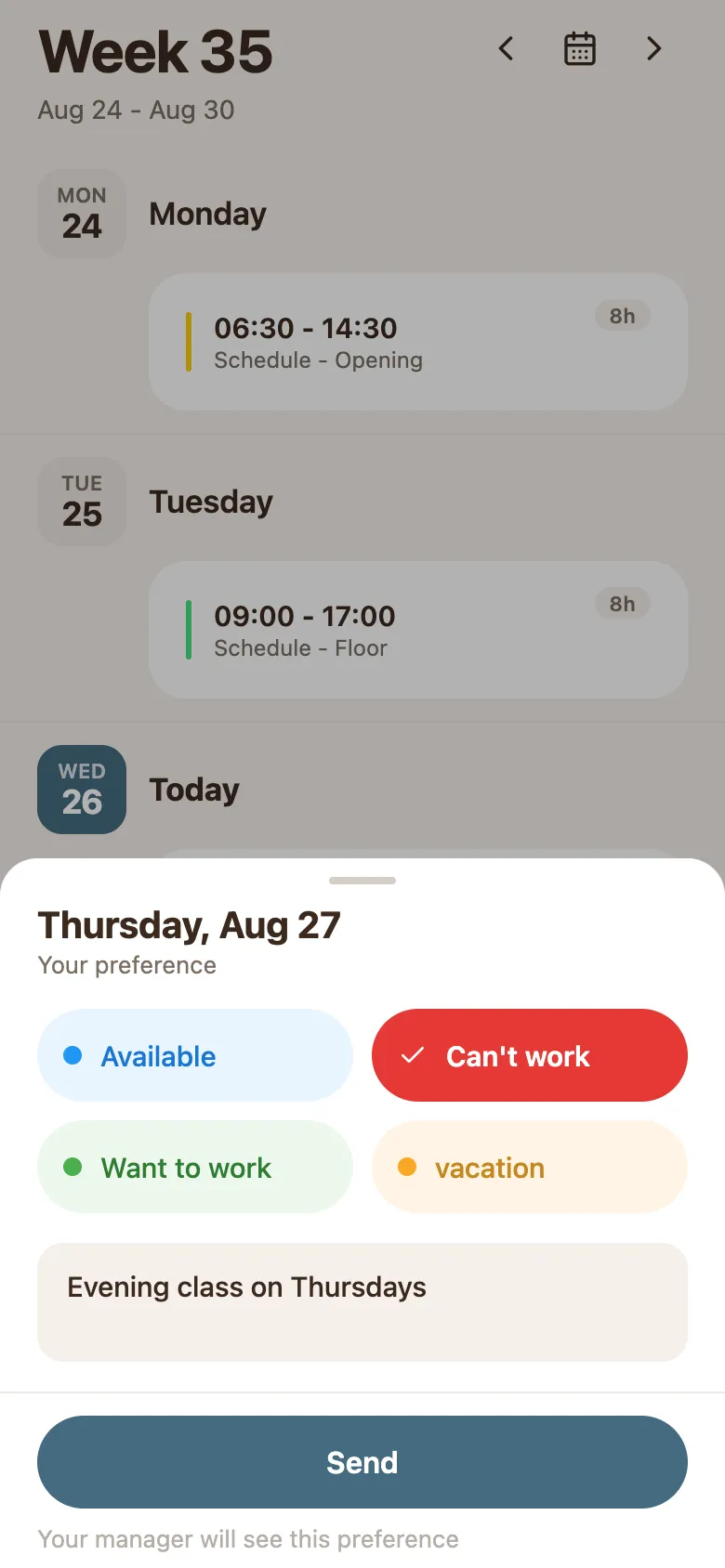
Tap the date badge. A sheet slides up headed with that day and Your preference, holding the same four answers you get on a computer.

A sheet on the phone headed with the date and Your preference, with buttons for Available, Can't work, Want to work and vacation, a note box, and a Send button.
  • Available, Can't work, Want to work and vacation are the four answers.
  • The box below takes a short note for your manager, and the line under the button reminds you they will see it.
  • Press Send and the sheet closes. The date badge picks up the colour straight away.

Do a run of days in one sitting. Each one is a tap, a choice and Send, and it is much faster than doing them one week at a time.

Your days go to your manager as one Availability request listing each day, what you asked for, and the note you wrote. They answer it from their own inbox, and approved days are what the schedule is planned against.

  • It is a preference, not a booking. A holiday you really need is still worth saying out loud.
  • You can change any day later, and the new answer simply replaces the old one.
  • Your sent availability sits in Requests under Outbox until it is answered.
  • Approved days are the version the team schedule is drawn against, so an approved day is the one that actually protects you.
  • If you want to see the other side, read what approving does on your manager's phone.

The earlier the better. Once the week is written and published, changing it means a shift swap for somebody else, and that is a much bigger ask than a tap.

Availability is only useful while it is true. A term that ended, a second job you left, a season where you want every hour going: each of those is worth five minutes on the schedule screen.

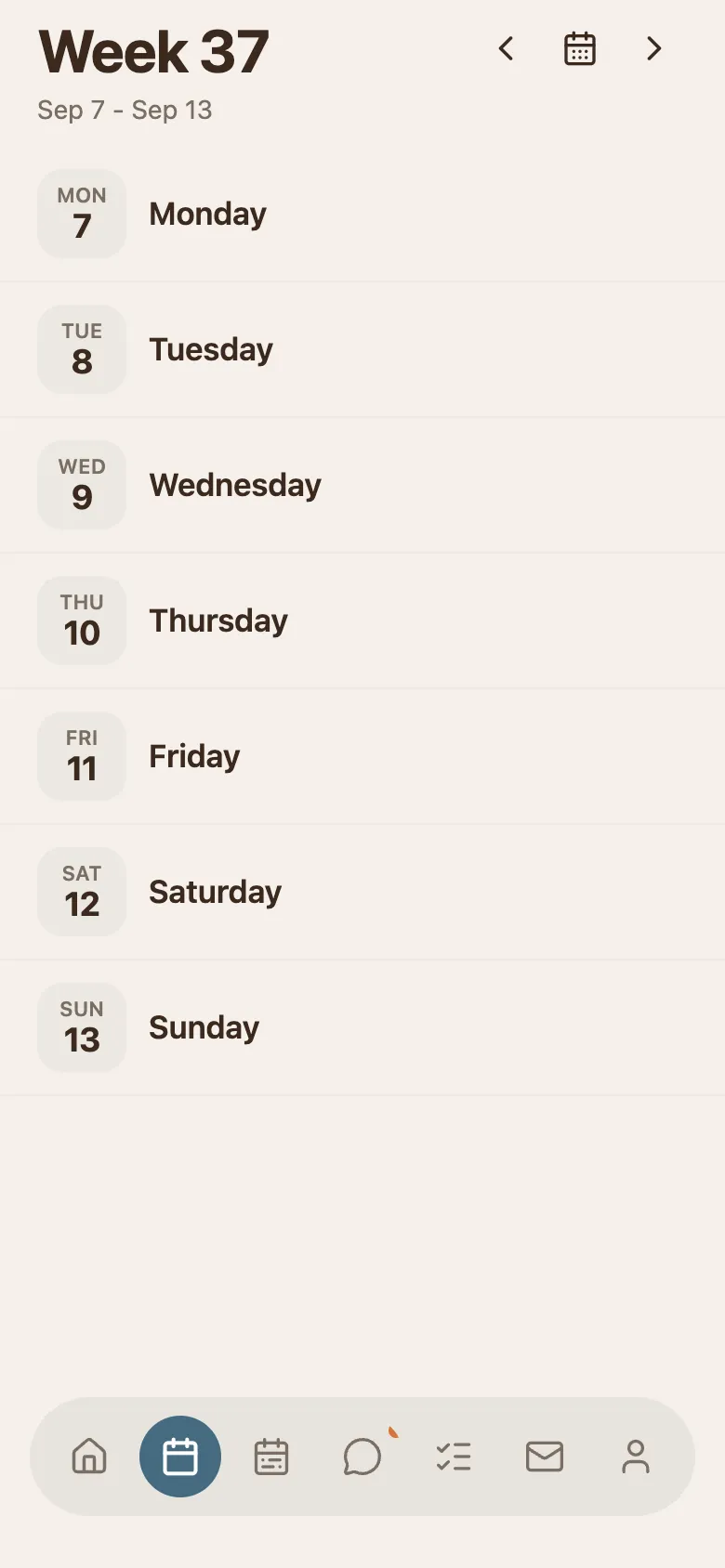
A week a few weeks ahead on the phone, Monday to Sunday with plain date badges, no shifts and no availability set on any day.
  • Set a run of weeks in one sitting rather than one week at a time, so the answer is there before the planning starts.
  • Days you have not answered are simply blank, and a blank day reads as no preference either way.
  • Setting a day back to Available is how you undo an old Can't work: there is nothing to delete.

Common questions

Still stuck? We're here.

Tell us what you're trying to do and we'll point you straight to it. A screenshot helps a lot.

Email support