
TimeTo.Work
Team guidesSet your availability

Team guide

Set your availability on your computer

The best time to say you cannot work Thursdays is before the week is written, not after. Availability is how you say it once, per day, with a short note if you want. Your manager sees it while they plan, so the shift you would have had to swap never gets written in the first place.

Your manager's side of this: Approve or deny a staff request

Sign in and you are on My Schedule. Each day is a row, with the date on the left and your shifts to the right of it. Availability lives on the date, not on the shift.
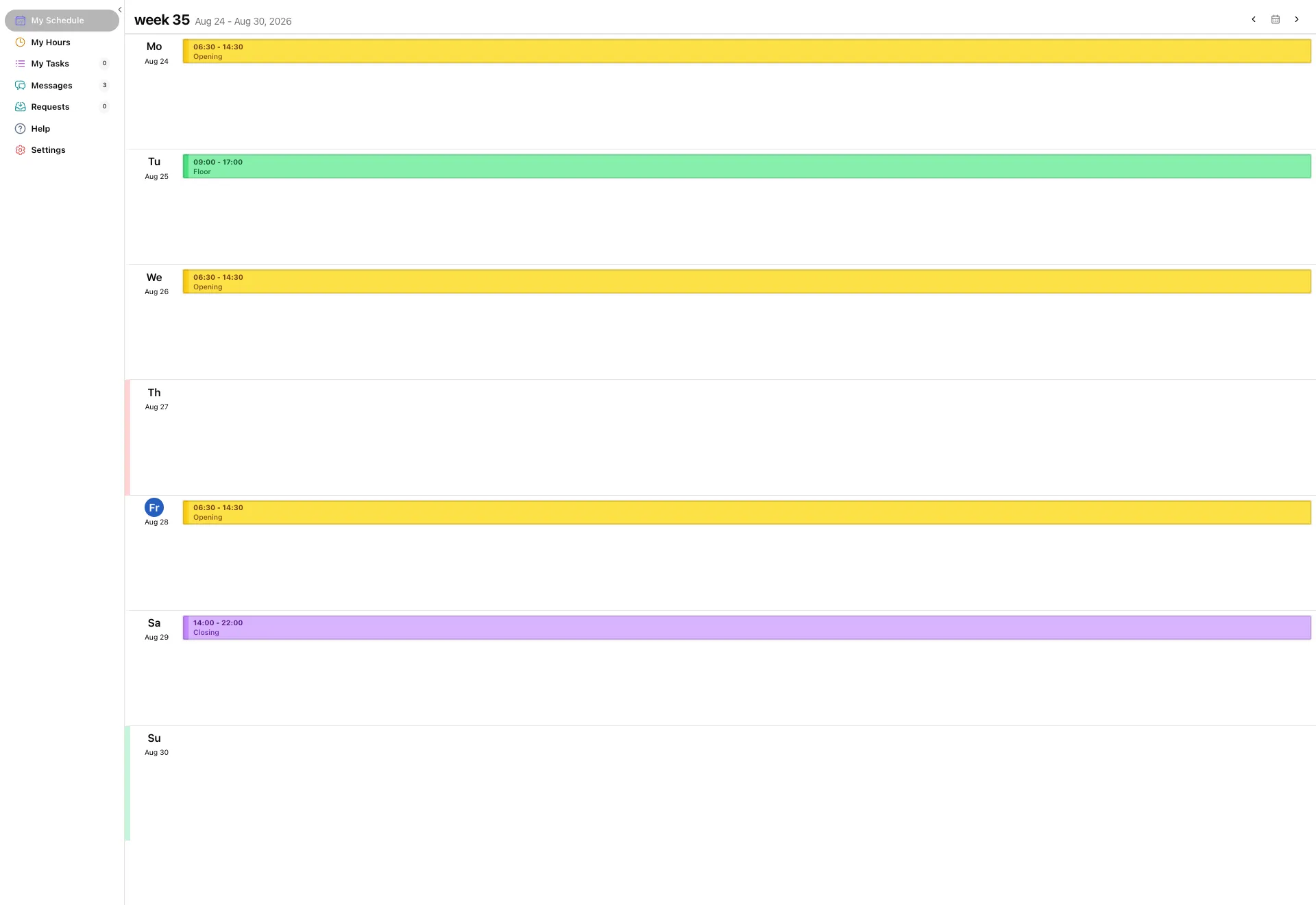
My Schedule with a week of shifts, and coloured stripes down the left edge of two days that have availability set on them.
  • A coloured stripe down the left edge of a day is availability you have already set on it.
  • Red is unavailable, green is want to work, yellow is vacation, and a day with nothing on it has no stripe.
  • Move to the week you actually want with ‹ and › in the top right before you set anything.

Availability is worth setting a few weeks ahead. That is the part of the schedule that has not been written yet, which is exactly where it can still change something.
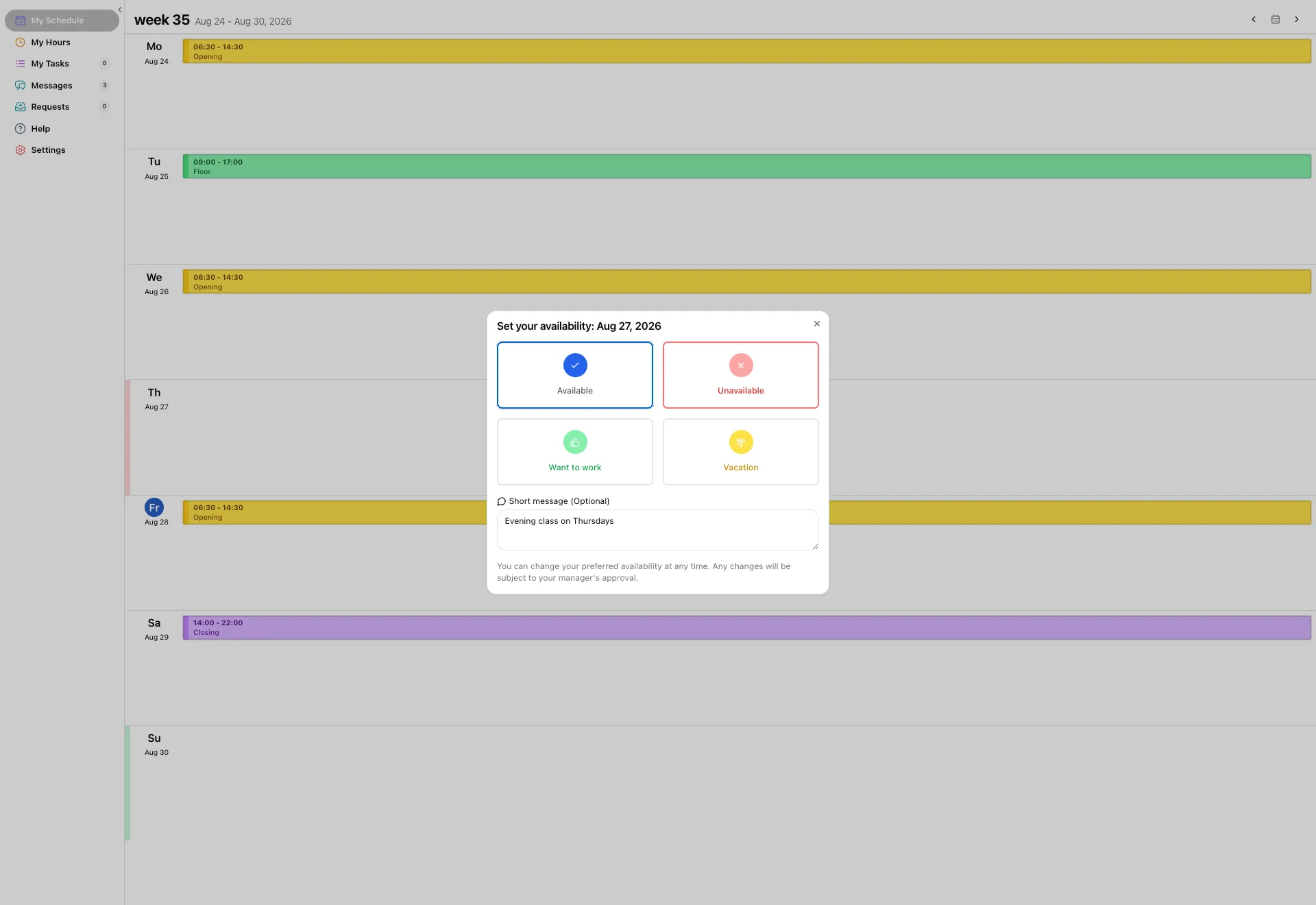
Click the date on the left of the day. Set your availability opens with four choices and the date in the heading, so there is no doubt which day you are answering for.

The Set your availability window for one date, with four tiles for Available, Unavailable, Want to work and Vacation, a short message box, and a line about manager approval.
  • Available means you can work if you are needed. It is the normal state.
  • Unavailable means do not schedule me. This is the one for a class, a second job or a standing commitment.
  • Want to work is you asking for the day, which is what your manager scans when a shift needs covering.
  • Vacation is a holiday you are asking for rather than a day you simply cannot do.

The Short message box takes one line. "Evening class on Thursdays" saves your manager a message asking why, and it stays attached to the day.

There is no save button. Type your note first if you want one, then click the status: that click is what saves it, the window closes, and the stripe appears on the day.

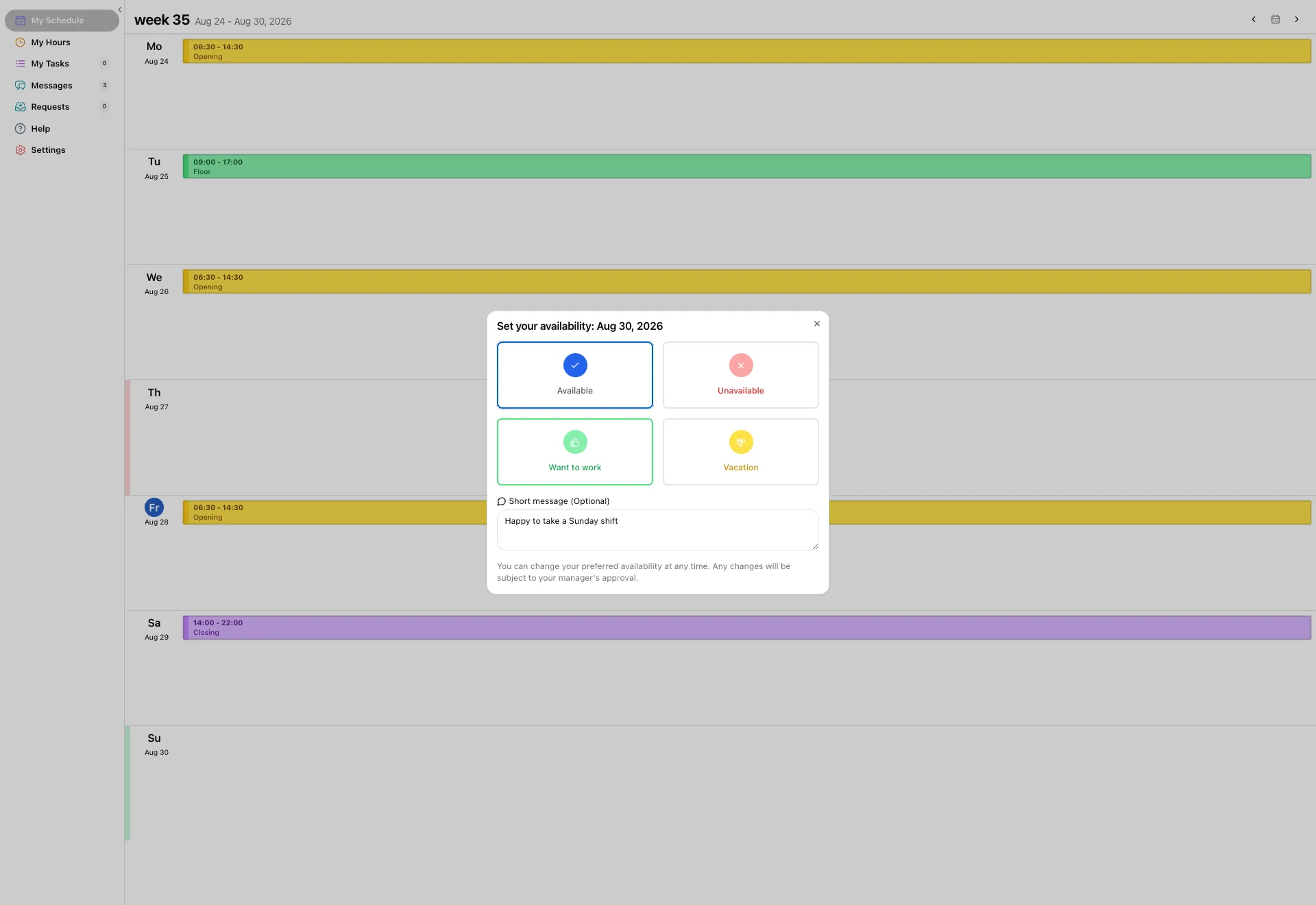
The Set your availability window for a second date, this one with Want to work outlined and the note Happy to take a Sunday shift already in the message box.
  • Picked the wrong thing? Open the day again and choose another status. The new one replaces the old one.
  • Open a day you have already answered and your note is still in the box, so you can edit it rather than retype it.
  • Every day is separate, so a week where you can only work weekends is four clicks, not one.

Your days arrive in your manager's request list as one Availability request, one row per day, with your note under the day you wrote it on. Nothing is booked yet: your manager reads it while planning and answers day by day.

  • An approved day is copied into the approved availability, which is the version the team schedule is planned against. That is the day that actually protects you.
  • A day your manager skips stays exactly as you set it on your own week. Nothing is sent back to you, and you can set it again for the next week.
  • Your availability shows on the team grid as a colour behind the day, so your manager sees it without opening anything.
  • The manager's side of this, with the screen they see, is its own guide: how your manager answers an availability request.

A holiday you actually need booked is worth a message as well. Availability tells your manager what you would prefer; it does not approve itself.

Common questions

Still stuck? We're here.

Tell us what you're trying to do and we'll point you straight to it. A screenshot helps a lot.

Email support