TimeTo.Work
GuidesMake a schedule

Admin guide

Make a schedule on your phone

Building the whole week from scratch is most comfortable in the desktop and web app. The phone shines for checking and quick fixes.

The whole team, at a glance

Tap the team schedule icon in the bottom bar. It's the same grid as on your computer: your people down the left, the days across the top, and every shift as a coloured block.
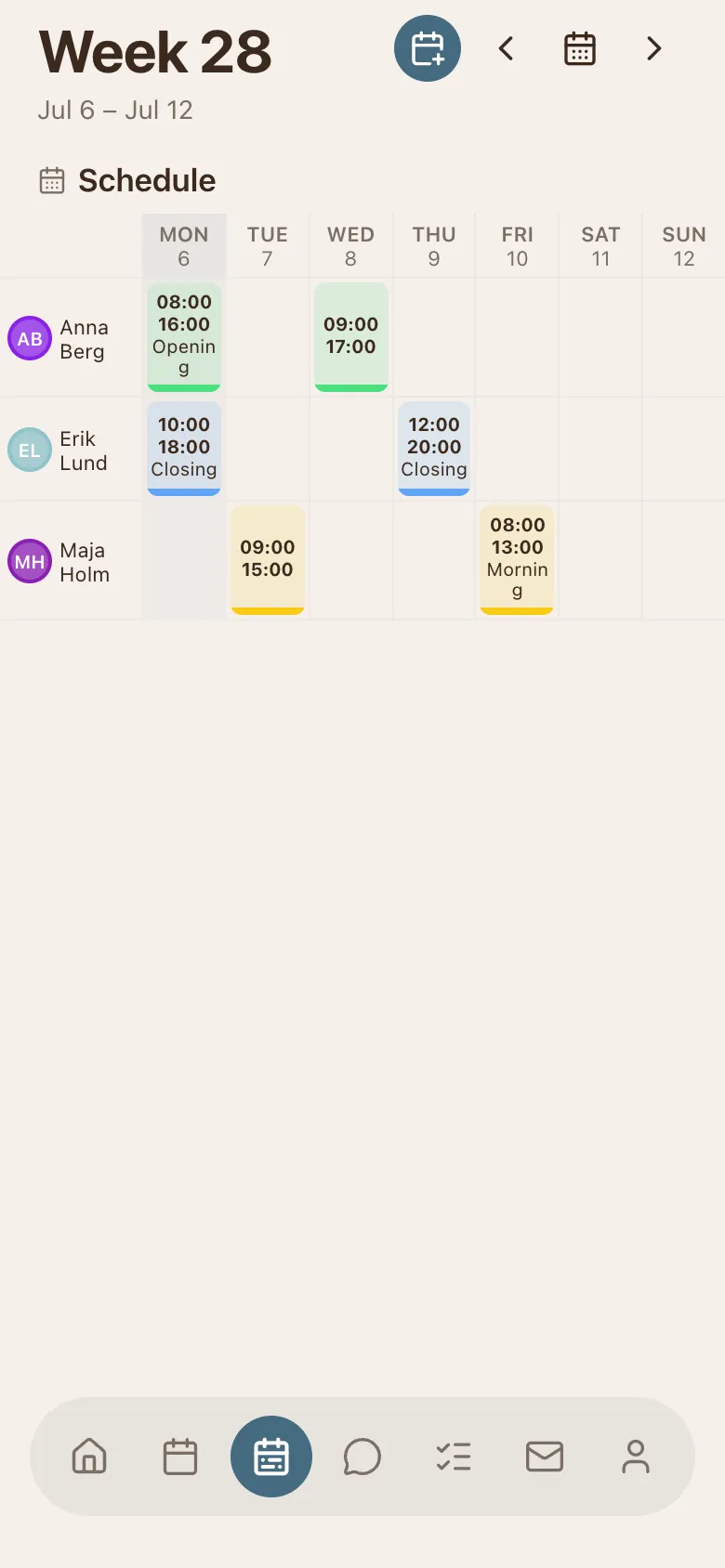
The mobile team schedule: staff down the left, the week's days across the top, and coloured shift blocks.
  • Use and at the top to move between weeks.
  • The calendar button between them jumps back to the current week.
  • Swipe the grid sideways to glide through weeks, too.
Add a shift

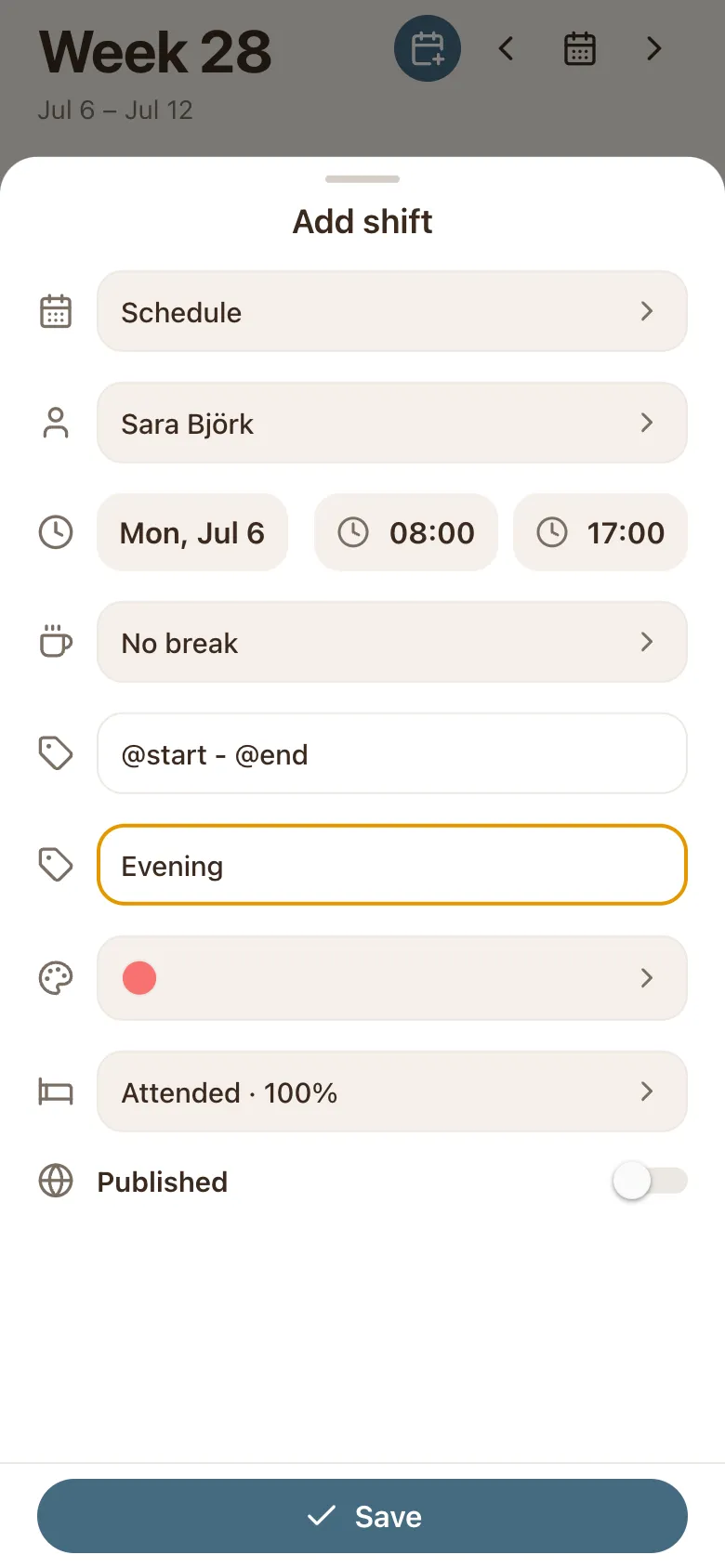
Tap the round + button at the top and the shift card slides up. It's the same card you know from the computer:

The Add shift card: schedule, person, date, start and end time, break, label, colour, and a Published switch above the Save button.
  • Pick who works it, the day, and the start and end time.
  • Add a break, a label, or a colour if you like.
  • Press Save and the shift drops into the grid.

Tap a shift to change it

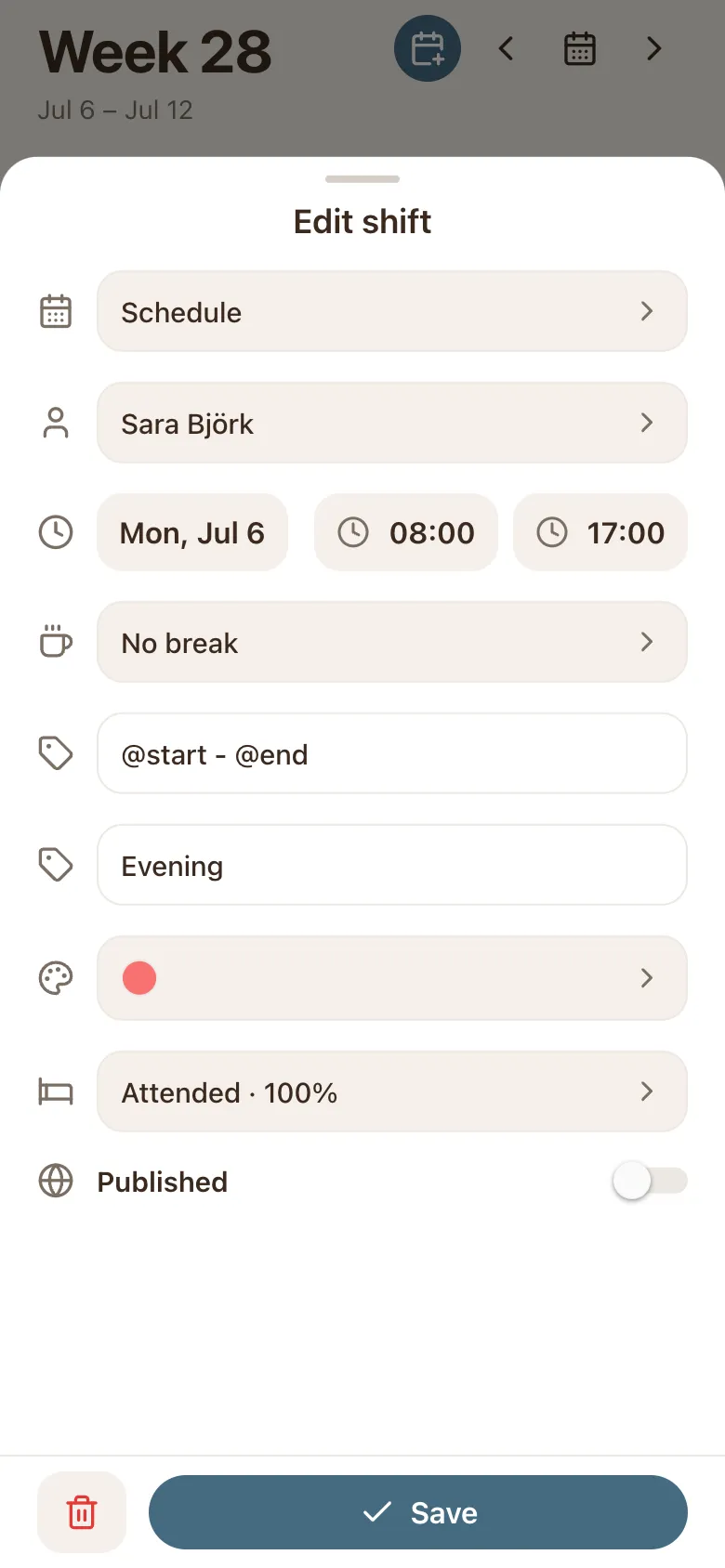
Spotted a mistake, or plans changed? Tap the shift in the grid and the same card opens with everything filled in. Change the time, move it to someone else, then Save.

Tapping a shift opens the Edit shift card, pre-filled, with a delete button next to Save.

Need it gone? The bin in the corner deletes the shift.

Publish, so your team can see it

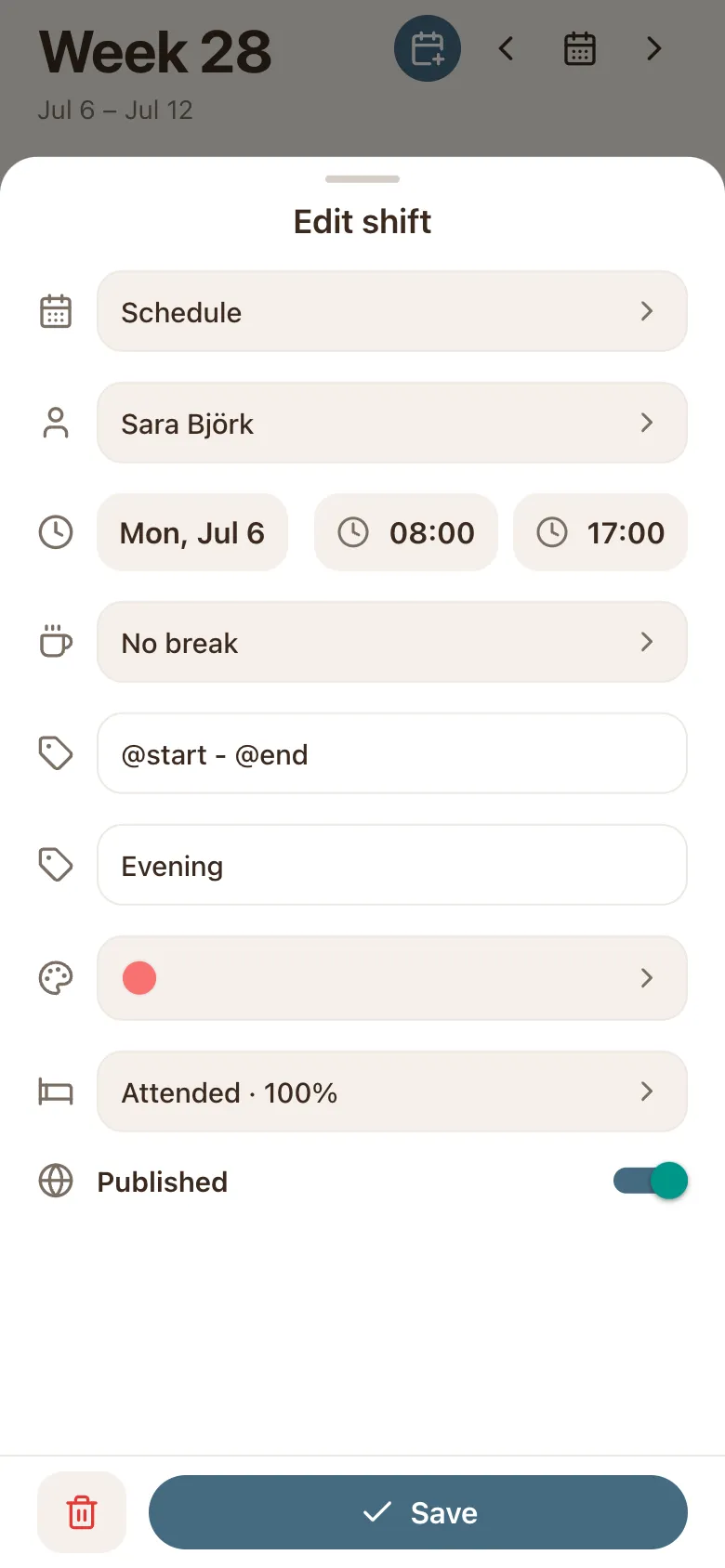
New shifts start as drafts. Only you see them, shown faded in the grid. When it is ready, open the shift, flick the Published switch and Save. The block turns solid and your team sees it instantly.

The shift card with the Published switch flicked on, ready to save.

Whole week ready to go out? Publish everything at once with the Publish button in the desktop and web app.

Always in sync. Anything you add or publish here shows up on your computer, and on your team's phones, automatically.

Still stuck? We're here.

Tell us what you're trying to do and we'll point you straight to it. A screenshot helps a lot.

Email support